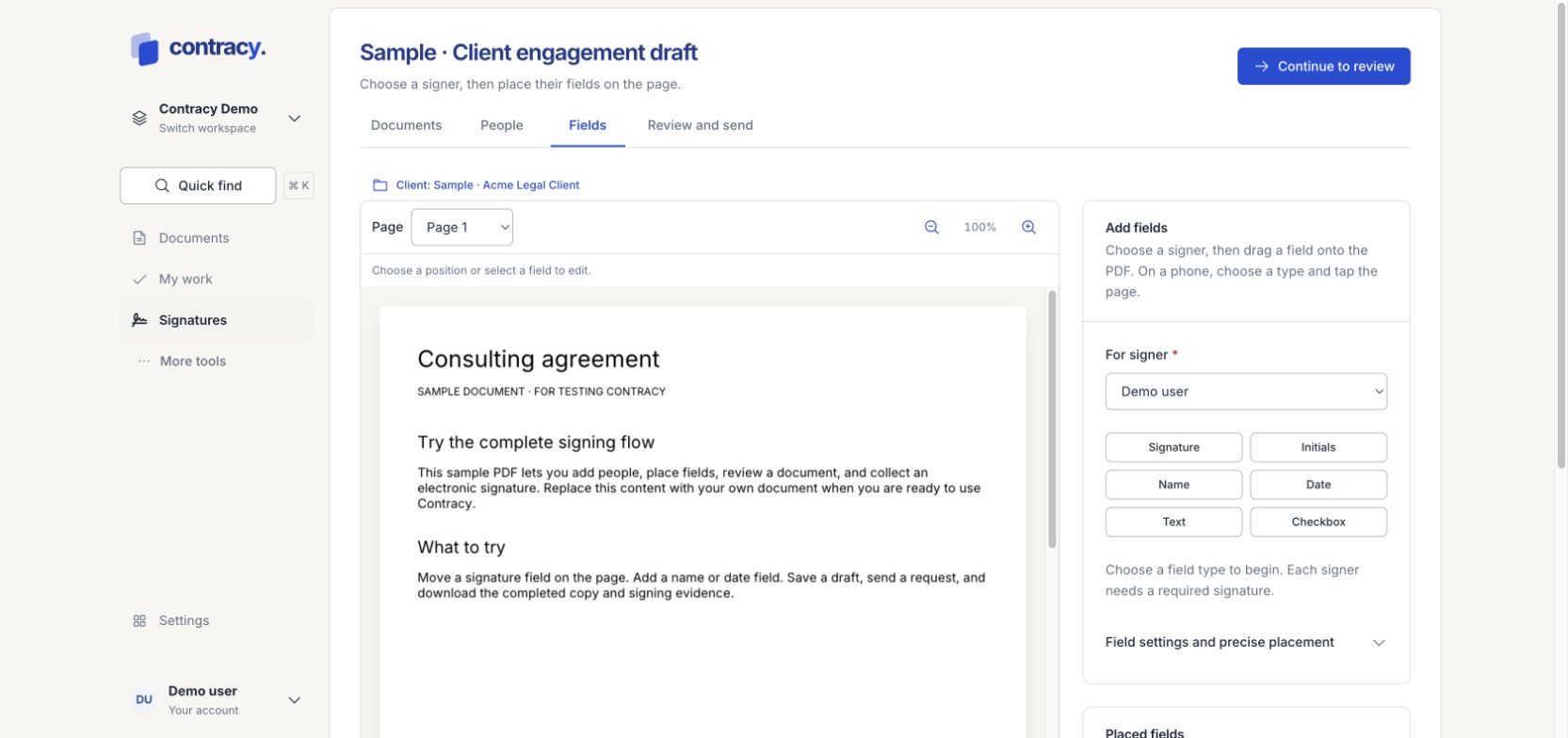
Fields tell each recipient where to sign or provide information. Open the Fields stage of a draft signature request.
Add a field
-
Select the recipient under For signer.
-
Choose Signature, Initials, Name, Date, Text or Checkbox.
-
On a desktop, drag the field onto the PDF. On a phone, choose a type and tap the page.
-
Place a required signature for every signer and add the other fields needed.
Adjust an existing field
Select its marker on the PDF or open its entry under Placed fields. Drag to move it, or use the field settings to change its signer, size, label and required status. Duplicate a field when you need a similar field elsewhere, then check the copy’s position and assignment.
Use the keyboard
Focus a placed field. Use arrow keys to move it and Shift with arrow keys to resize it. Press Enter to save the adjustment or Escape to cancel. Field settings and precise placement provides another way to set a location.
Check before continuing
Use the page and zoom controls to inspect the layout. Check that fields sit inside the intended areas and belong to the right signer. Continue to Review and send to inspect the final PDF and recipient list.
Changing zoom does not change a saved field’s relative position. A sent request has fixed content and fields; edit the draft before sending.
Screenshot uses fictional local demo data.