Prepare the file, people and fields before sending a request. A recipient can sign from a private invitation link without creating a Contracy account.
1. Documents
Start from Signatures, upload a file or choose existing ready documents. From an open document, choose Request signatures to continue directly to People. You can prepare an ordered package of up to 10 ready files within the allowed workspace and matter scope.
2. People
Add each signer’s name and email, or choose a saved contact where available. Check addresses carefully. Choose whether everyone signs at the same time or in sequence. Optional settings include email-code verification.
3. Fields
Choose a signer, then place their fields on the PDF. Each signer needs a required signature field. Check every page and assignment. Use the field settings to adjust labels, required status and precise placement.
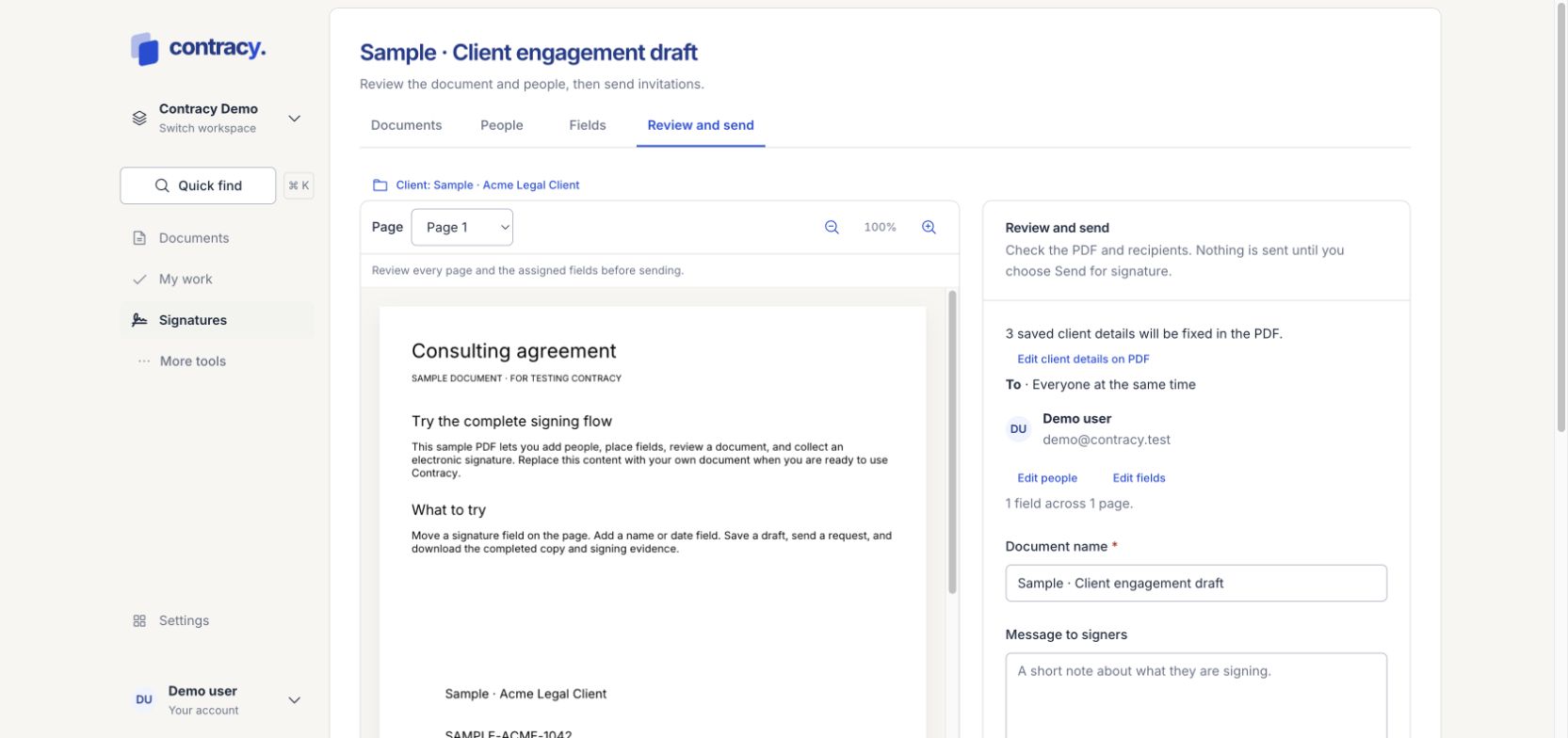
4. Review and send
-
Inspect the actual PDF, including any saved client details.
-
Check the recipients, order and fields. Use Edit people or Edit fields if something needs changing.
-
Check the document name and message. Expand Options for expiry and reminder settings.
-
Choose Send for signature when ready.
Nothing is sent until the final action. Save draft lets you return later. After sending, the prepared PDF and fields are fixed. Source versions are retained for multi-document packages.
If sending is blocked
Resolve any missing fields, incomplete preparation, required reviews or access errors shown on the page. Check Billing and Storage if a workspace allowance is reached. Inspect text-only DOCX previews before signing.
Screenshot uses fictional local demo data.