Use Documents as a library even when no signature is needed. Filing a document under a client, matter or folder is optional.
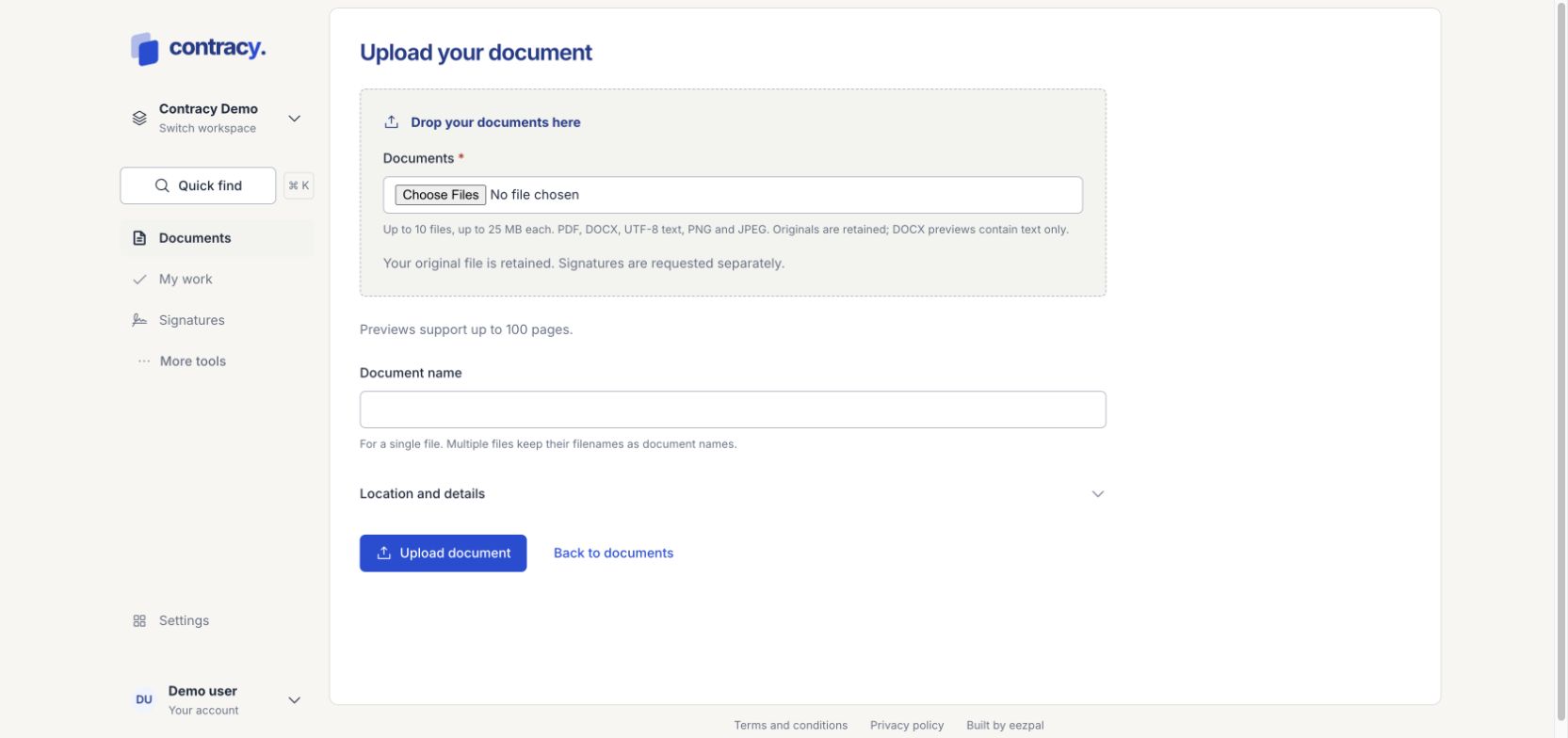
Upload files
-
Open Documents → Upload document.
-
Choose up to 10 files, up to 25 MB each. Supported types are PDF, DOCX, UTF-8 text, PNG and JPEG.
-
Check the Document name for a single file. Multiple files keep their filenames.
-
Expand Location and details if you want to add a client, matter, folder, tags or classification.
-
Choose Upload document. Wait for the preview to become ready.
Uploading from a folder, client or matter keeps that context. Your original file is retained. DOCX previews contain text only; inspect the PDF before requesting signatures. Previews support up to 100 pages.
Find and organize files
Use Find a document to search. Use Filters for additional filters, layout and sort choices. Use the Folders and Archived views to browse those items.
Select document checkboxes to reveal bulk actions. Choose the operation and, for a move, an allowed destination, then apply it. Available actions depend on your access.
If an upload or preview fails
Check the supported format and file size, then review the error for that file. A batch can contain successful files and failed files; check the results before uploading again. If a document offers Retry preparation, use it to retry its preview. The original remains available from Document actions.
Screenshot uses fictional local demo data.