Contracy keeps your documents, reviews and signature requests in one workspace. You can store a file without asking anyone to sign it, then request signatures when it is ready.
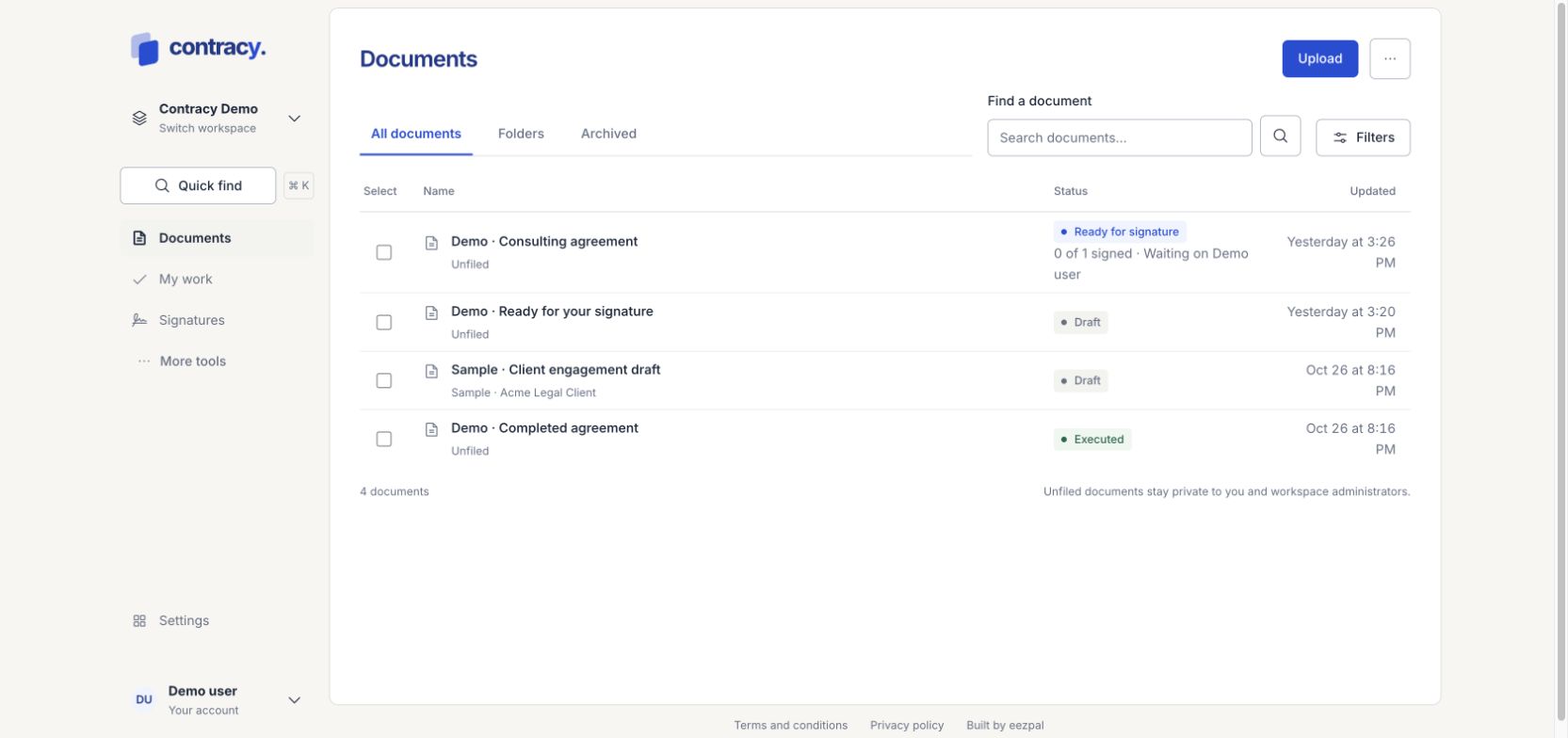
Documents library with fictional demo data.
Find your way around
-
Documents is your library. Upload, search, organize and open files here.
-
My work brings together your tasks, reviews and signatures. Use To do, Waiting on others and Updates to see the next action.
-
Signatures tracks draft, active and completed signature requests.
-
More tools gives you access to additional workspace tools. What you see depends on your access and workspace settings.
-
Settings contains workspace settings. Use Your account at the bottom of the sidebar for personal account settings.
Upload your first document
-
Open Documents and choose Upload document.
-
Select a PDF, DOCX, UTF-8 text, PNG or JPEG file. You can upload up to 10 files at once, up to 25 MB each.
-
For one file, check the document name. Location and details are optional.
-
Choose Upload document, then open the file when its preview is ready.
Your original is retained. DOCX previews contain text only, so check the generated PDF before requesting signatures.
Send it for signature
Open a ready document and choose Request signatures. Add people, place their fields, then check Review and send. Nothing is sent until you choose Send for signature. Recipients can sign from their private email link without creating a Contracy account.
Switch workspaces
Choose the workspace name near the top of the sidebar, then select the workspace you want to use. Documents and access are scoped to that workspace.
Screenshots in this help center use fictional local demo data. Labels and available tools may differ with your role and plan.